Introduction
The Auto Follow-Up feature allows your Conversation AI bot to automatically send outbound messages to re-engage a contact who has dropped off, gone inactive, or asked to be followed up later. This removes the need for manual intervention or building complex workflows.
Whether a user says they’re busy, asks for a specific follow-up time, or just stops replying, the AI can recognize these situations and schedule a follow-up message accordingly. Once the contact responds, the follow-up logic resets automatically.
Important: Make sure to maintain realistic delays between follow-ups to ensure a natural conversation. Over-messaging may lead to users marking your messages as spam.
This feature is currently available via labs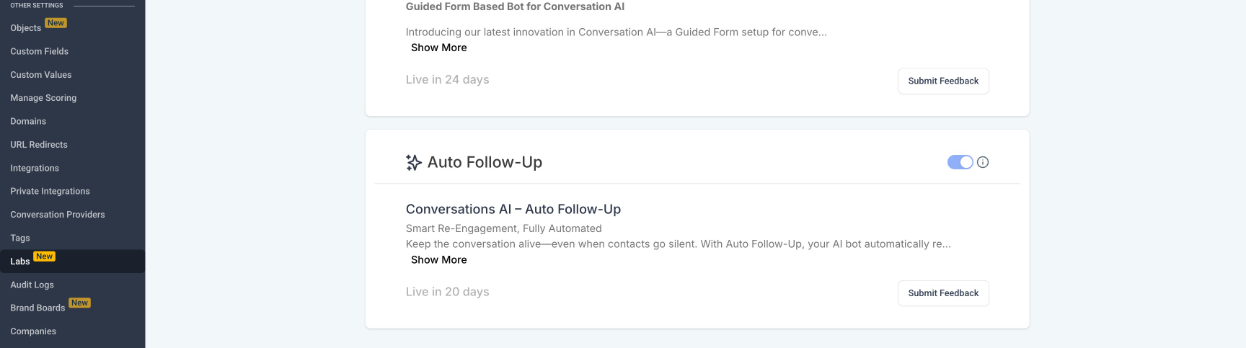
Why Use This?
Let’s say you’re running a service business—like a salon, a clinic, or a marketing account. You often face situations where users:
Say they're busy (e.g., in a meeting, driving)
Ask you to follow up after a specific time
Stop responding mid-conversation
With Auto Follow-Up, your bot will:
Automatically detect these scenarios
Store this intent
Schedule and send follow-up messages at the right time
Respect user-defined follow-up times and working hours
Switch communication channels dynamically to stay connected
This leads to:
Improved response rates
Reduced manual work
Better user experience
Higher engagement and conversion
Based on the conversation history and last inbound message message the bot decides whether to follow-up or not.
Condition when Follow-up wont take place or will stop
1. when the user says I am not interested in your product or stop messaging me
2. when the appointment is booked , if the contact texts back again it will followup
3. if the bot has sent booking link , it will followup but if the contact responds i have booked an appointment , it will stop following up
Step-by-Step Guide to Configuring Auto Follow-Up
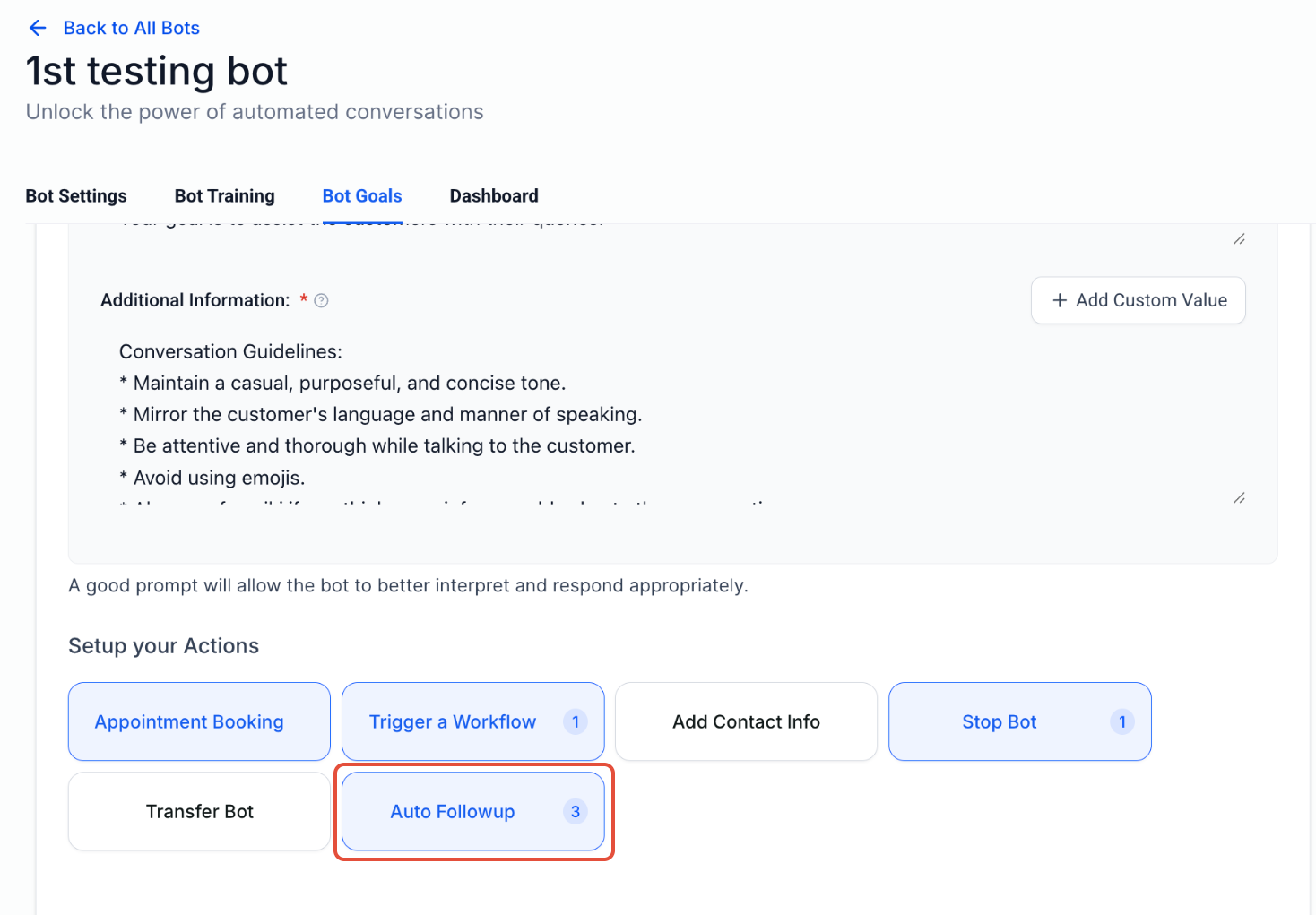
Step 1: Navigate to the Bot Goals Tab
Open your AI bot configuration and navigate to the Bot Goals section. From here, select the Auto Follow-Up option to begin setup.
Step 2: View and Enable Predefined Scenarios
The platform offers 3 common drop-off situations you can enable:
Contact Stopped Replying
Contact is Busy (e.g., says "I'm in a meeting" or "driving")
Contact Requests a Specific Follow-Up Time
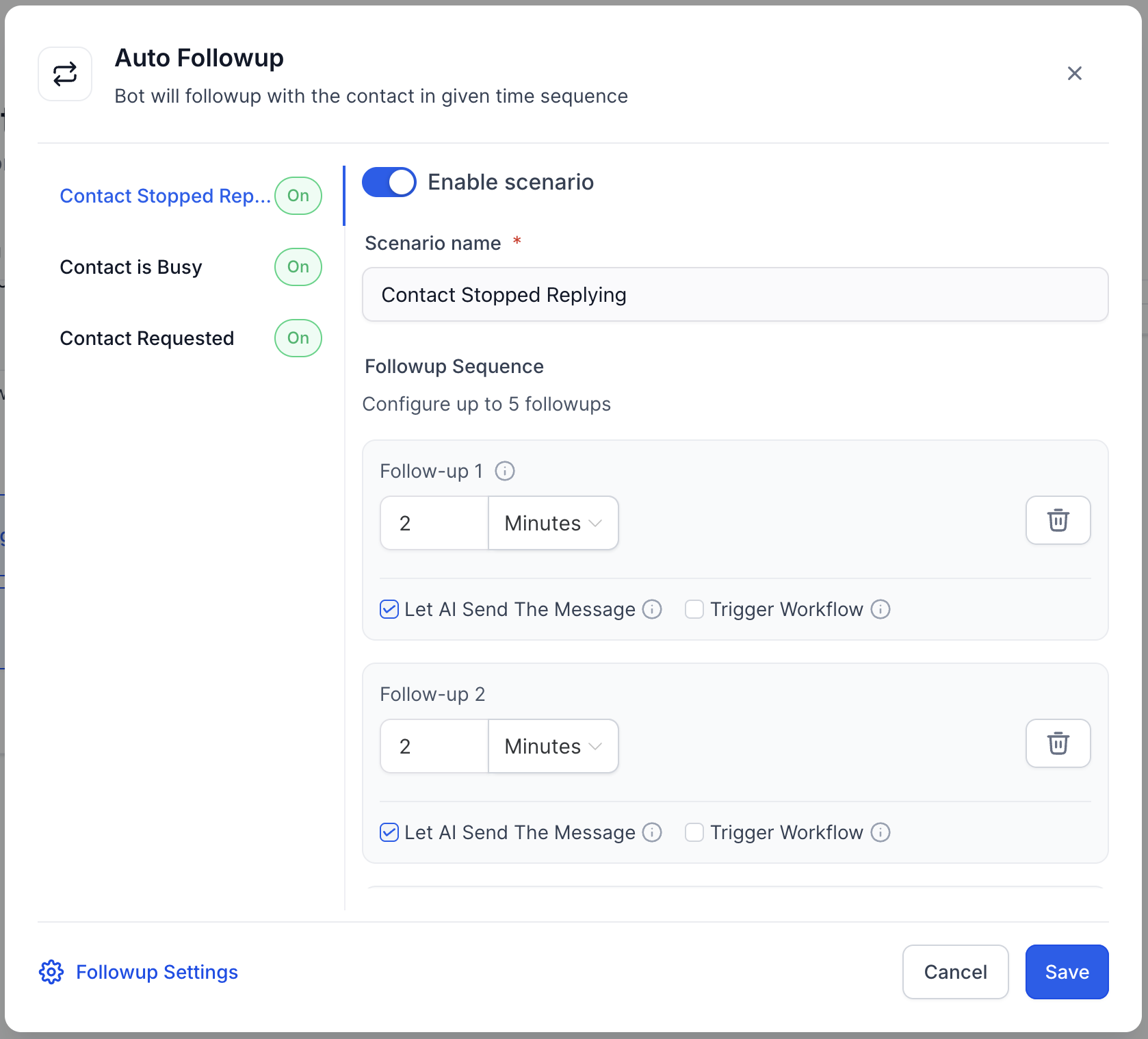
For each scenario:
Turn on the desired scenario.
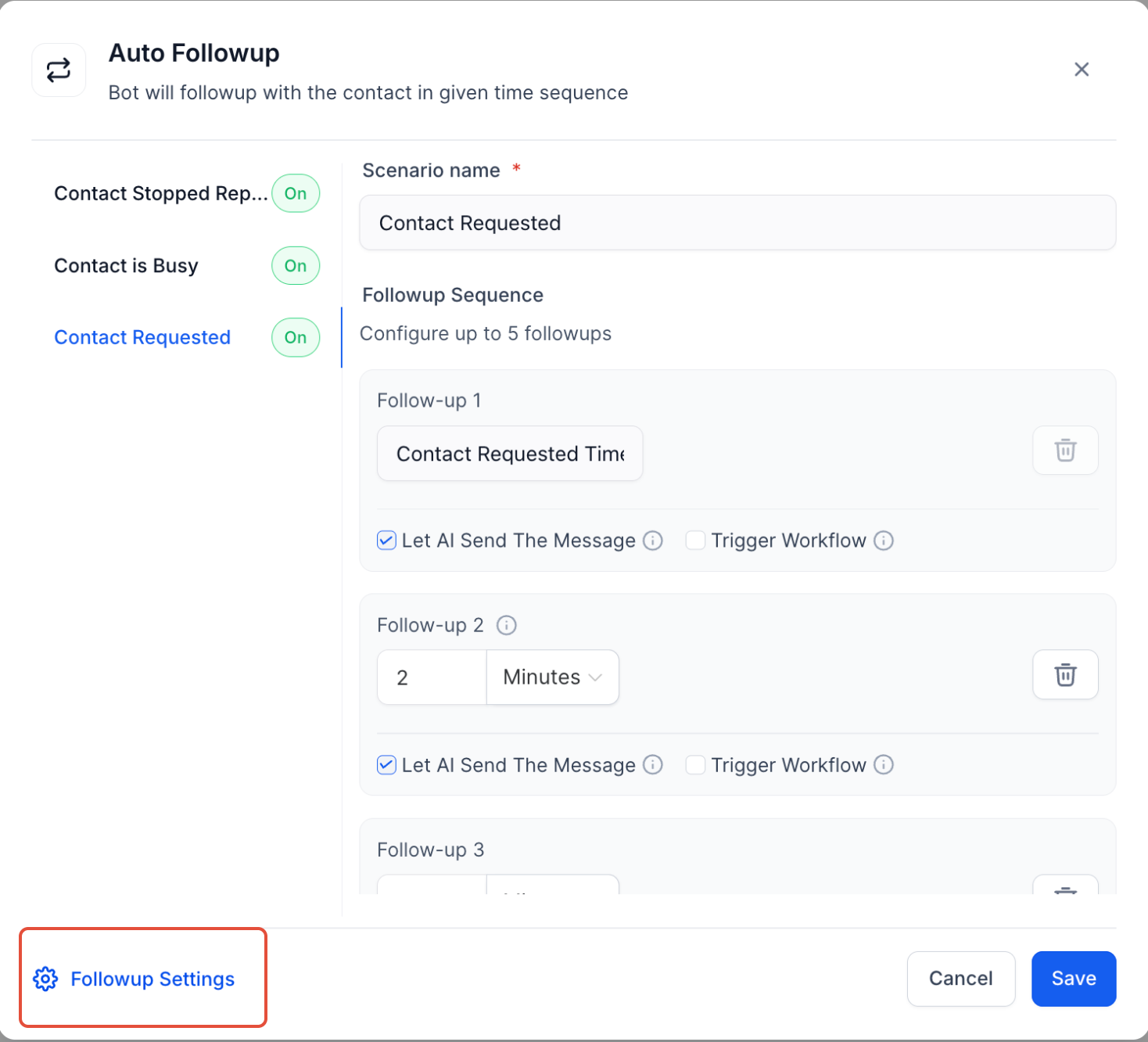
Set the follow-up cadence—the time delay after which follow-ups should be sent.
Example:
If you configure the following:
First follow-up: 5 minutes
Second follow-up: 15 minutes after the first
The AI will:
Send the first follow-up after 5 minutes of inactivity
Send the second follow-up 15 minutes after the first, if the contact still hasn’t replied
If the contact replies the followup cadence resets
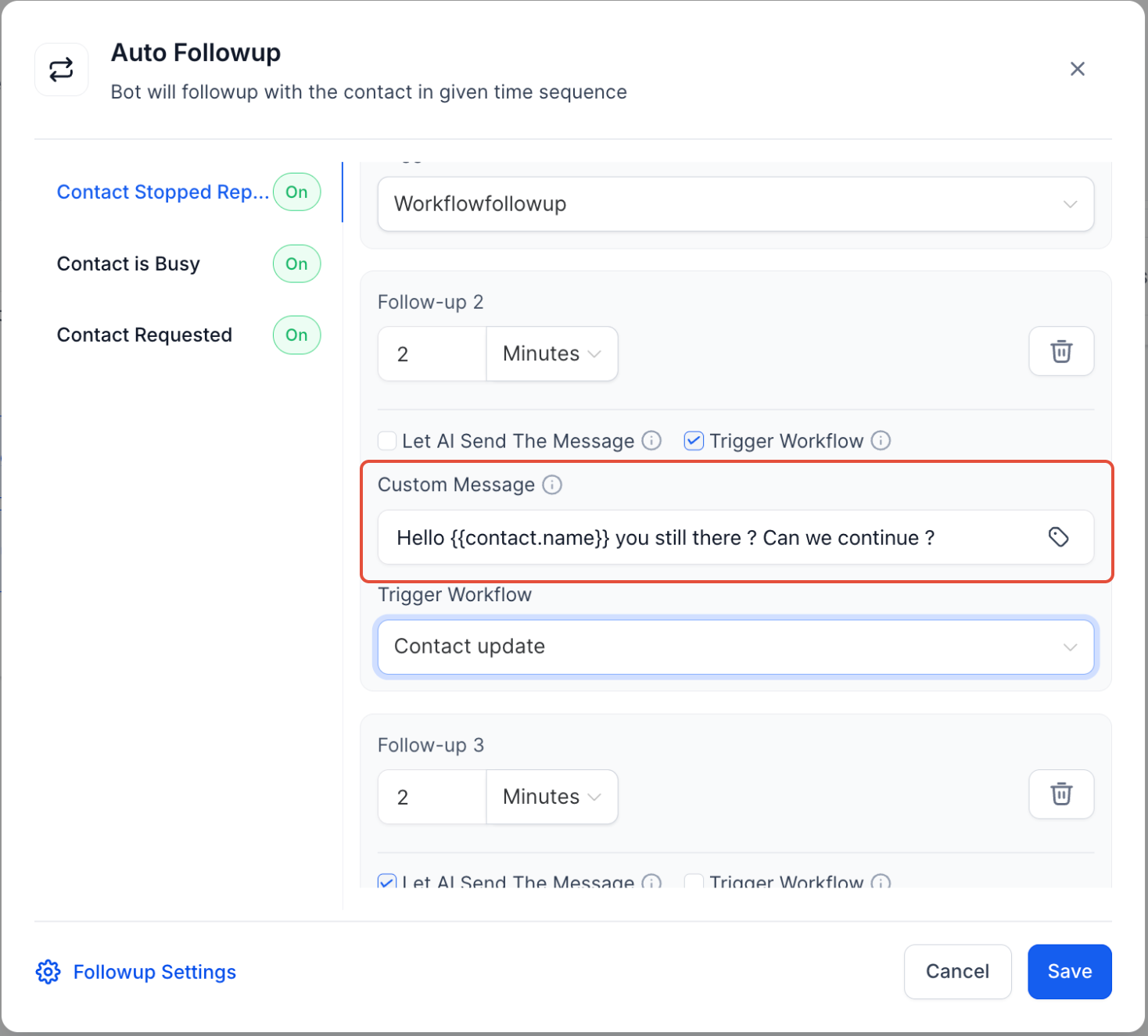
Step 3: Customize the Follow-Up Message and Trigger Workflows
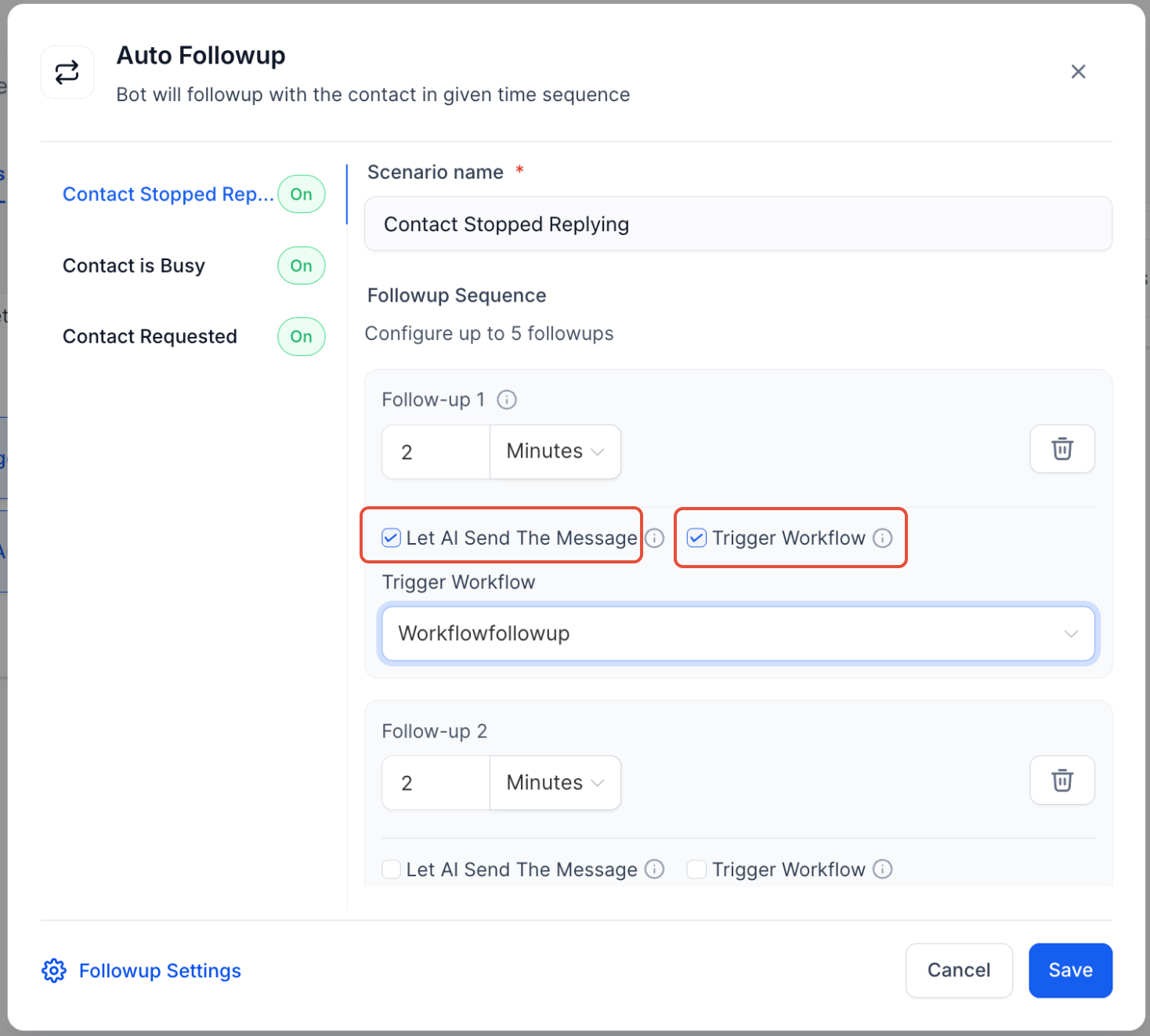
You can choose how the AI responds in follow-ups:
Use AI-generated messages by default , this will lead to Bot sending followup message as per context of conversation
Send a Custom Message: Enable the checkbox to enter your own follow-up text
Trigger a Workflow: You can trigger a custom workflow when a follow-up is sent. this will allow you to add tags or assign a conversation to user or notify a user
⚠️ Strict Warning: Do not trigger another bot via workflow, as it can cause inconsistent conversations and break the follow-up logic.
Step 4: Set Active Working Hours (Optional)
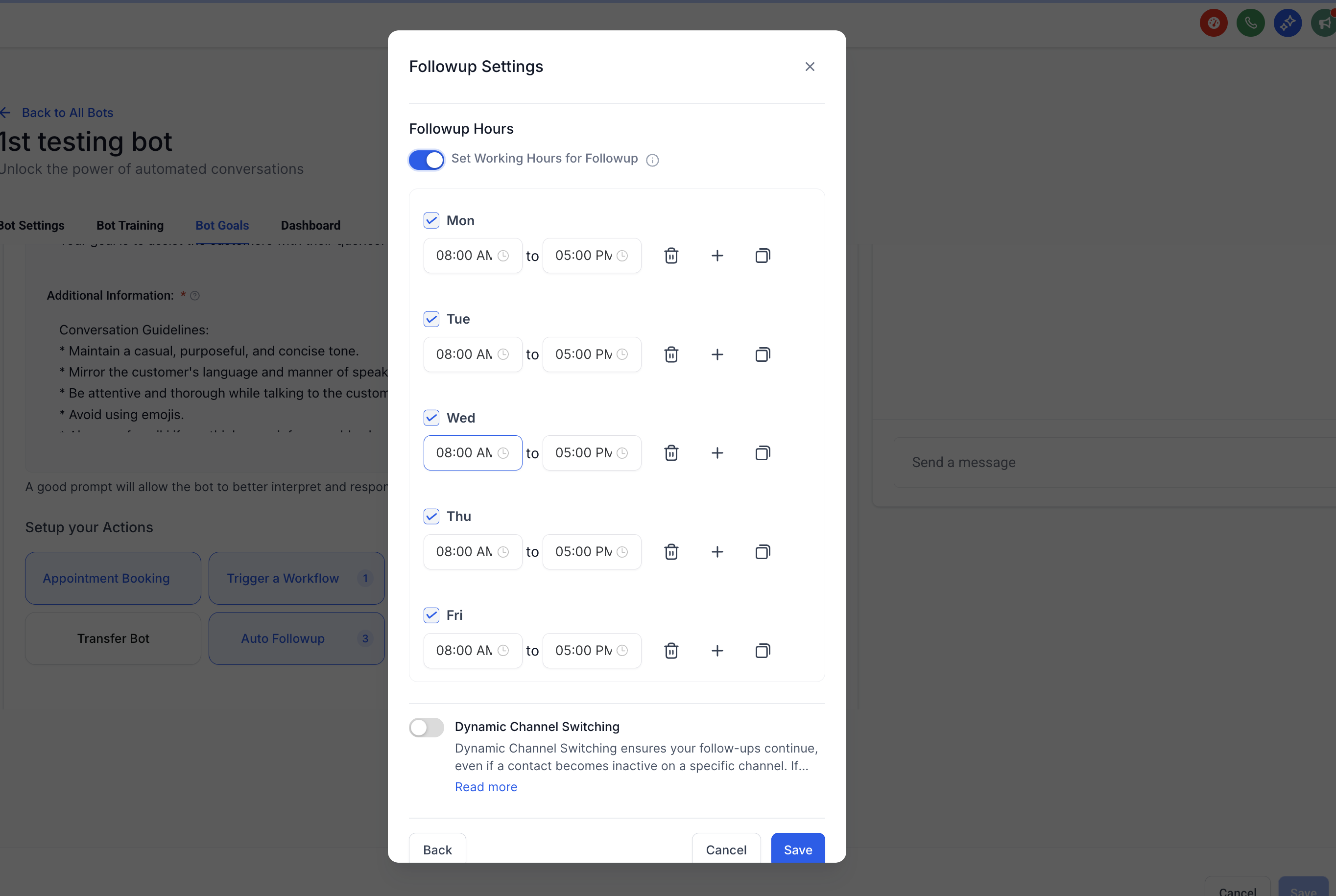
Ensure follow-ups only occur during your business hours by setting Active Working Hours.
Example:
If working hours are 8 AM – 5 PM, and a follow-up is scheduled at 9 PM, it will be deferred to the next day at 8 AM.
Dynamic Channel Switching
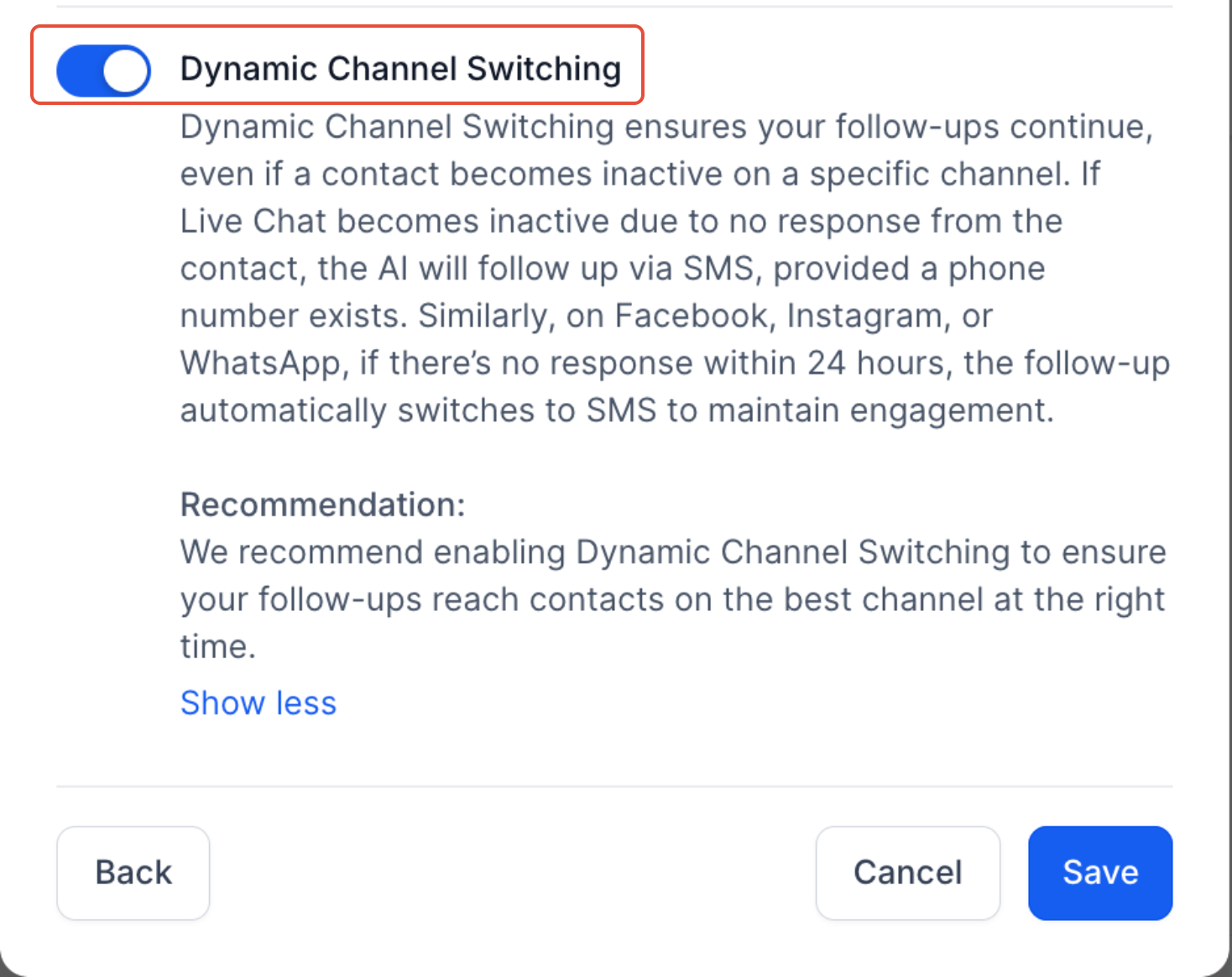
Auto Follow-Up intelligently switches channels if a contact becomes inactive on the current one:
If a contact stops responding on Live Chat, the bot will switch to SMS (if a phone number is available).
On platforms like Facebook, Instagram, or WhatsApp, if there’s no response within 24 hours, follow-ups are automatically switched to SMS to keep the conversation going.
It can be kept off if you dont want to switch channels
Step 5: Track Follow-Up Activity
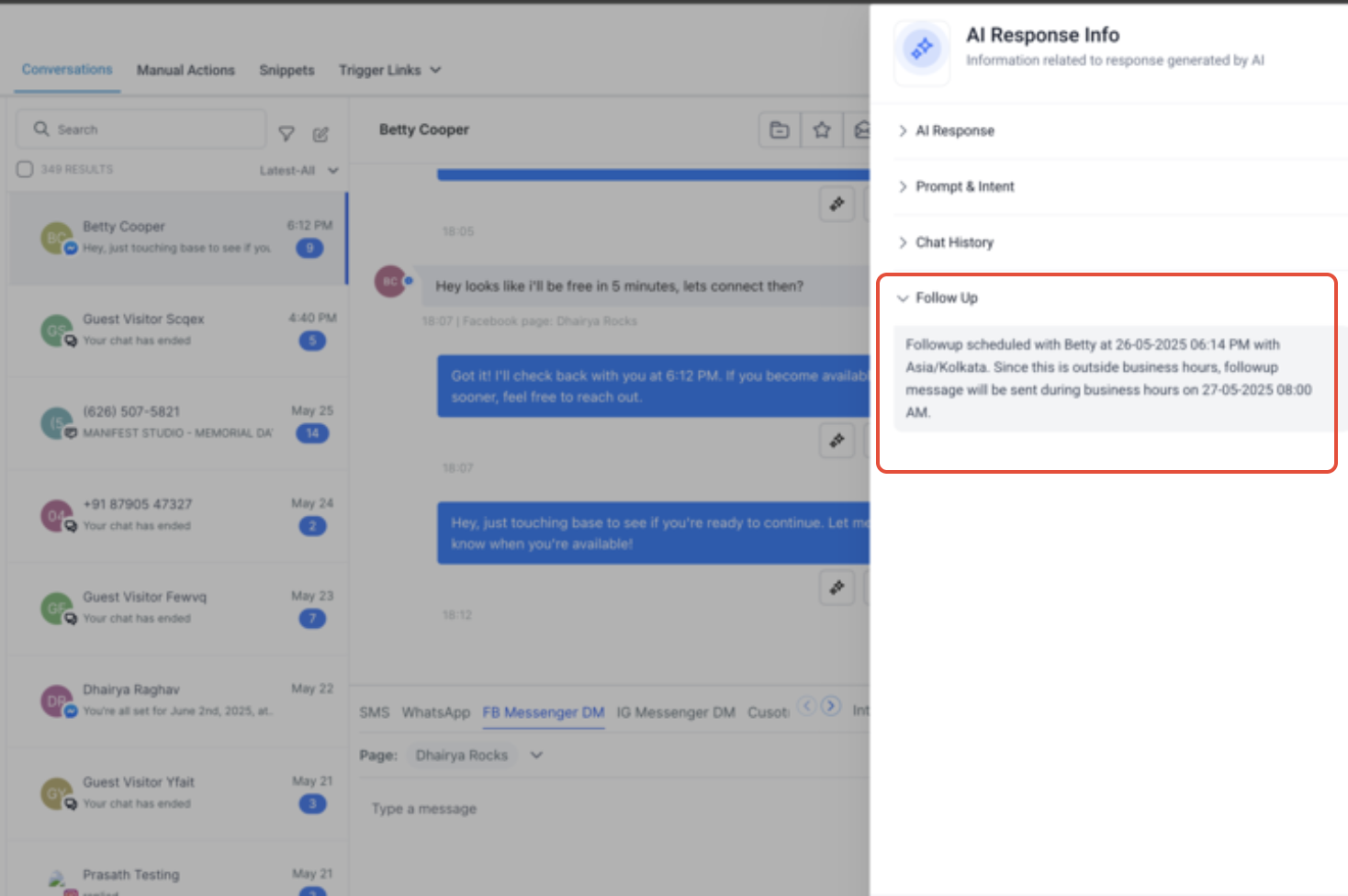
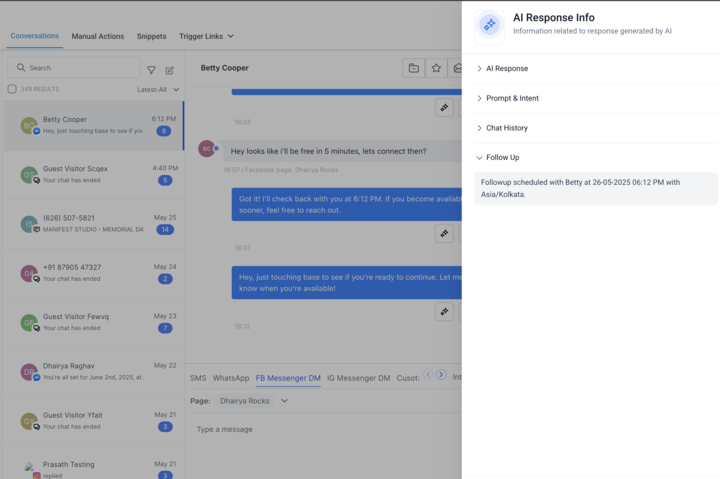
All scheduled follow-ups will be visible in the Response Info panel for each contact. This gives you a transparent view of when follow-ups are planned and what triggered them.
Important Notes
Follow-ups will not be sent if the bot is inactive
Avoid triggering bots via workflow actions during follow-ups
Set realistic delay durations to avoid spammy behaviour
Response resets follow-up logic—once the contact replies, the followup logic resets
Was this article helpful?
That’s Great!
Thank you for your feedback
Sorry! We couldn't be helpful
Thank you for your feedback
Feedback sent
We appreciate your effort and will try to fix the article